How to Choose a Gaming Monitor
If you are researching how to choose a gaming monitor, do not start with the flashiest model. Start with your graphics card, your games, and your viewing distance. A good gaming monitor balances resolution, size, refresh rate, response, image quality, connections, and ergonomics.
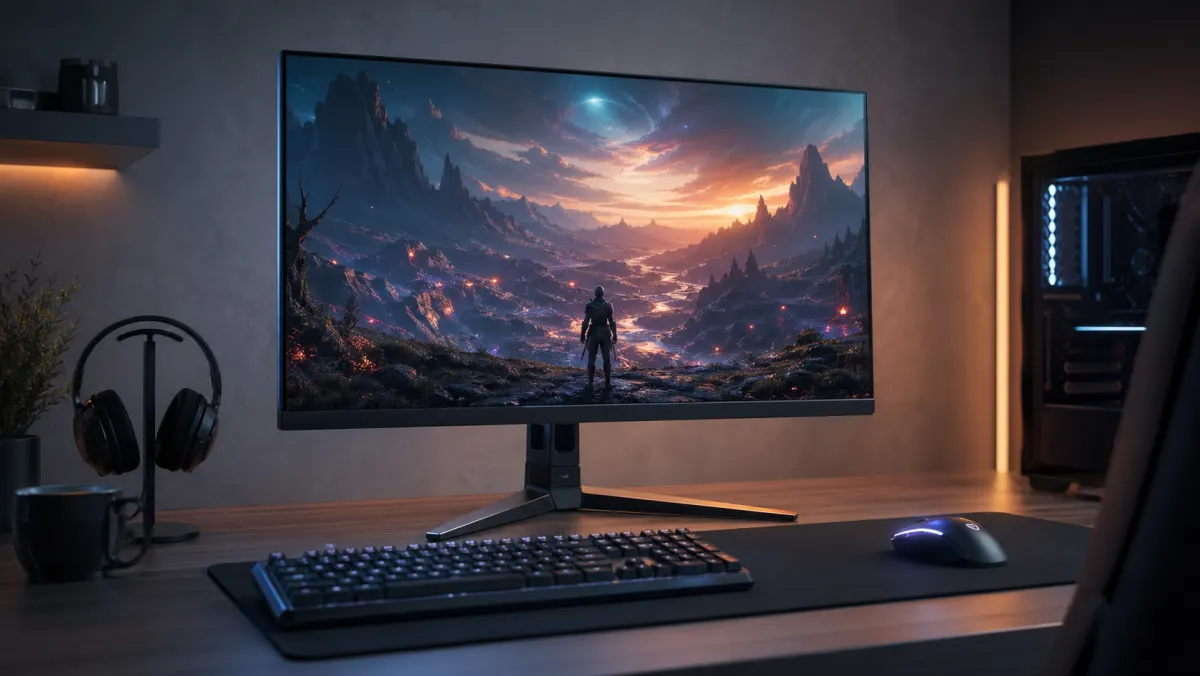
Buying a gaming monitor can feel like a wall of acronyms: Hz, GTG, MPRT, VRR, HDR, OLED, IPS, VA, HDMI 2.1, and DisplayPort. The trick is ranking those specs by real impact. This guide explains what to check, what to ignore, and how to avoid paying for features you will not use. If you want specific models, check our selection of the best gaming monitors or the dedicated list of best 144Hz monitors.
Start with the games you play
Your games should drive the decision. A competitive player needs smooth motion and low latency; someone who plays campaigns, RPGs, or simulators often values resolution, contrast, HDR, and immersion more. For mixed use, balance matters more than chasing one number.
- Esports: 24 or 27 inches, 1080p or 1440p, 240 Hz or higher if your PC can keep up.
- General gaming: 27 inches, 1440p, and 144-180 Hz is usually the sweet spot.
- AAA games: 27-32 inches, 1440p or 4K, good contrast, real HDR, and VRR.
- Console: 4K, 120 Hz, HDMI 2.1, and VRR support if you use a modern PlayStation, Xbox, or equivalent console.
- Simulation: ultrawide or 32-inch displays can add immersion if you have enough desk space and GPU power.
Resolution and size: the first important filter
Resolution and screen size belong together. A large low-resolution monitor can look soft; a small 4K monitor can demand too much performance for a benefit you may not always notice.
- 24-inch 1080p: affordable, fast, and practical for competitive gaming.
- 27-inch 1440p: excellent balance of sharpness, FPS, and price.
- 32-inch 4K: great detail for visual games, console, and content, but more GPU-heavy.
- 34-inch ultrawide or larger: very immersive, though not every game or console uses it equally well.
If you are unsure, 27 inches at 2560 x 1440 is a strong recommendation for modern PC gaming. For modest systems, 1080p still makes sense. For a high-end GPU or a console focused on image quality, 4K can be worth it.
Refresh rate: 144 Hz, 165 Hz, 240 Hz, or higher
Refresh rate tells you how many times per second the display can update. Moving from 60 Hz to 144 Hz is a huge improvement. Moving from 144 Hz to 240 Hz can also help, but the gain is smaller and only matters if your system produces enough real FPS.
For most people, 144 Hz or 165 Hz is an excellent baseline. 240 Hz, 360 Hz, or higher makes sense if you play competitive shooters, lower graphics settings, and maintain very high frame rates. If you want to stay in that balanced zone, avoid paying more for refresh rates you may not use.
Response time and input lag
Do not confuse response time with input lag. Response time describes how fast pixels change; input lag is the delay between your action and what appears on screen. Both matter, but marketing claims such as "1 ms" are not always representative without real testing.
Look for reviews that measure overshoot, ghosting, and performance at multiple refresh rates. An aggressive overdrive mode can improve a response-time number while making the image worse with inverse ghosting.
Panel type: IPS, VA, TN, OLED, and Mini LED
- IPS: solid colors, good viewing angles, and fast response in many models. The easiest recommendation for general use.
- VA: better contrast than IPS and deeper blacks, but some models show more dark-level ghosting.
- TN: very fast and cheap, but weaker color and viewing angles. Today it only fits very specific competitive needs.
- OLED: perfect contrast, extremely fast response, and excellent image quality. Consider brightness, image retention, price, and warranty.
- Mini LED: very good HDR brightness and zone-based contrast, though blooming can appear around bright objects.
VRR, G-SYNC, FreeSync, and AdaptiveSync
VRR means variable refresh rate. It synchronizes the monitor with real game FPS to reduce tearing and stutter. NVIDIA describes G-SYNC as matching the monitor refresh rate to the GPU frame rate, while VESA certifies AdaptiveSync displays through variable-refresh performance testing.
In practice, look for clear compatibility with your GPU or console. If you use NVIDIA, G-SYNC Compatible or validated G-SYNC support adds confidence. If you use AMD, FreeSync Premium or Premium Pro can be a good sign. Always check the VRR range and whether it works over the port you plan to use.
HDR: not every HDR monitor looks like HDR
HDR can improve contrast, color, and brightness, but many monitors advertise HDR without enough brightness, contrast, or local dimming. VESA DisplayHDR exists because HDR labels were hard to compare and provides a public certification methodology.
For convincing HDR, check sustained brightness, peak brightness, contrast, color coverage, and local dimming. On basic edge-lit monitors, HDR is often more of a signal compatibility feature than a clear visual upgrade.
Connections: HDMI, DisplayPort, and USB-C
For PC, DisplayPort is usually the most common connection for high refresh rates. For modern consoles, HDMI 2.1 is important if you want 4K at 120 Hz with VRR. Always check what resolution and refresh rate each port supports, because some monitors limit features depending on HDMI or DisplayPort.
- DisplayPort: recommended for high-refresh PC gaming.
- HDMI 2.1: important for 4K 120 Hz on console and some PC setups.
- USB-C: useful if you also connect a laptop, especially with charging and DisplayPort Alt Mode.
- USB hub and KVM: practical if you switch between desktop PC, laptop, and peripherals.
Ergonomics, stand, and desk space
A gaming monitor also has to fit your desk. Check height adjustment, tilt, swivel, VESA mount support, stand depth, and curvature if you are considering a large or ultrawide screen. A huge panel with an awkward stand can be worse than a slightly smaller monitor that is comfortable every day.
Quality control: dead pixels, uniformity, and backlight bleed
When the monitor arrives, check dead pixels, uniformity, banding, backlight bleed, and motion behavior. Do it during the return period, in normal room conditions, using solid backgrounds. You can use our screen test tool to inspect the panel fullscreen.
What to prioritize by budget
- Tight budget: 24-inch 1080p or affordable 27-inch QHD.
- Mid-range: 27-inch 1440p, 144-180 Hz, good response, ergonomics, and complete ports.
- Competitive: 24-27 inches, 240 Hz or higher, low input lag, and excellent motion clarity.
- Image quality: 27-32 inches, OLED or Mini LED, real HDR, good contrast, and strong warranty.
- Premium console: 4K, 120 Hz, HDMI 2.1, VRR, and good HDR mode.
Quick buying checklist
- Confirm what FPS your PC or console can deliver.
- Choose size and resolution: 1080p, 1440p, 4K, or ultrawide.
- Set your refresh-rate target: 144/165 Hz, 240 Hz, or higher.
- Pick panel type: IPS, VA, OLED, or Mini LED depending on priorities.
- Check real response, overshoot, and input lag in reliable reviews.
- Verify VRR with your GPU or console and the port you will use.
- Do not pay extra for HDR unless the monitor has hardware to make it useful.
- Review ergonomics, stand, VESA mounting, and desk space.
- Read warranty, return policy, and dead-pixel coverage.
- Run a screen test when it arrives.
See the Best Gaming Monitors
If you already know what to look for, jump to our recommended models and compare specific options by use case, resolution, and budget. If you prefer a balanced refresh-rate purchase, you can also jump straight to 144Hz monitors.
Frequently Asked Questions
Is 1440p or 4K better for gaming?
1440p is usually the better PC balance because it offers good sharpness and high FPS. 4K is worth it if you prioritize detail, play on a modern console, or have a powerful GPU.
Is a 240 Hz monitor worth it?
Yes for competitive gaming if your PC reaches high and stable FPS. For story-driven games or mixed use, 144 Hz or 165 Hz is often enough and leaves budget for a better panel or resolution.
Which gaming panel should I choose?
IPS is the most balanced choice. OLED is excellent for contrast and response if you accept the price and care requirements. VA is useful if you prioritize contrast on a tighter budget.
How do I test a new gaming monitor?
Check dead pixels, uniformity, backlight bleed, motion, VRR, and all ports during the return period. Test it with real games and solid-color screens.
Conclusion
The best answer to how to choose a gaming monitor is to rank priorities: first your games and hardware, then resolution and refresh rate, then panel type, response, VRR, HDR, and ports. That way you buy a monitor you feel every day, not just one with impressive numbers on the box.